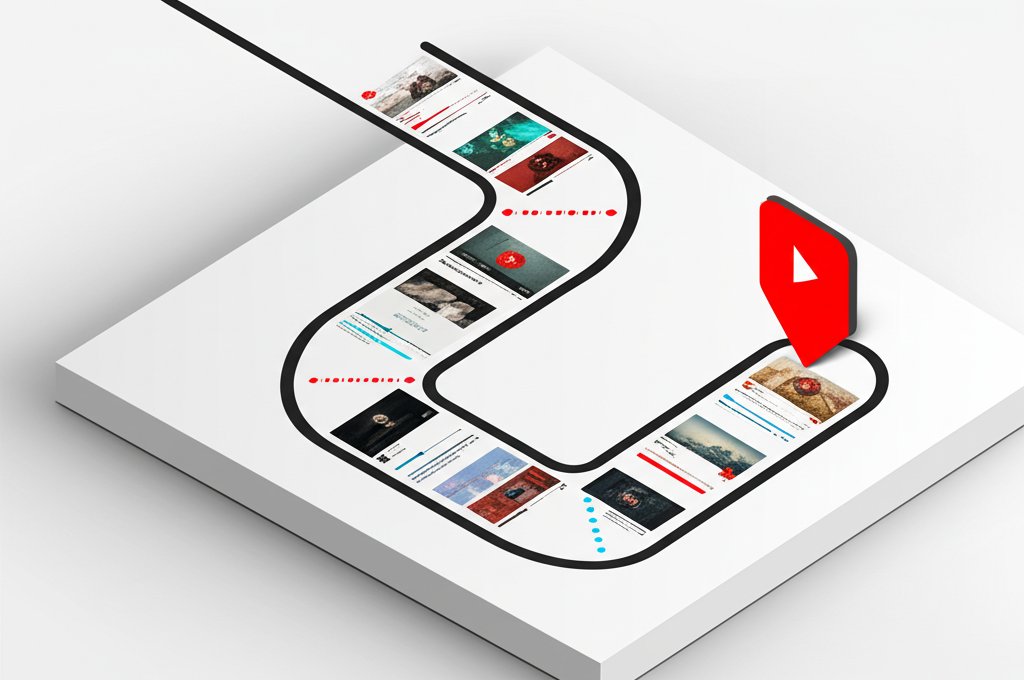
It’s a familiar feeling: you’re trying to recall that brilliant tutorial or hilarious clip you saw just yesterday, but it’s vanished. Finding your last watched on YouTube video can feel like searching for a needle in a digital haystack, especially when your feed is constantly refreshing with new content. But your viewing history is more than just a passive log; it’s the primary tool YouTube uses to understand you, and the key for you to control what you see next.
This isn’t just about finding a lost video. It’s about taking command of your recommendations and turning YouTube into a platform that truly serves you.
At a Glance: Key Takeaways
- Pinpoint Your History: Quickly access your watch history on desktop via the “You” -> “History” menu on the left, or on mobile by tapping the “You” tab and then “View all” next to “History.”
- Understand the “Why”: Your watch history directly fuels YouTube’s recommendation algorithm. What you watch, and for how long, dictates what appears on your homepage and in your “Up Next” queue.
- Master Removal: Learn to delete a single video to correct your recommendations or clear your entire history for a complete reset.
- Go Incognito: Pause your watch history to explore topics without leaving a trace or influencing your future suggestions.
- Dig Deeper: Use Google’s My Activity for a more powerful, searchable, and filterable view of your complete YouTube history.
Your Watch History Is the Algorithm’s Playbook
Before we jump into the “how,” let’s cover the “why.” Every video you watch is a signal you send to YouTube. The platform’s algorithm doesn’t just register that you clicked play; it analyzes what you watched (the topic), how long you watched (audience retention), and how you interacted (liked, commented, or shared). This data becomes the blueprint for your entire user experience.
Think of it like a personal shopper. If you spend 30 minutes watching a detailed review of a new coffee machine, the algorithm thinks, “Aha, they’re interested in coffee, kitchen gadgets, and maybe product reviews in general.” Suddenly, your homepage is filled with espresso tutorials and appliance comparisons. That’s your watch history in action. Understanding this is the first step, as it gives you the power to fine-tune what the algorithm learns. This detailed log is just one part of your overall data; for a complete overview, it helps to understand how to Manage Your YouTube Watch History in its entirety.
Finding Your “Last Watched” List: The Direct Routes

For quickly finding a video you just viewed, YouTube provides a straightforward history page. The location is slightly different depending on your device, but the function is identical.
On a Desktop Browser (The Full View)
The website version gives you the most expansive view, with a simple, scrollable list and easy-to-access management tools.
- Navigate to YouTube.com and ensure you are signed into your Google account.
- Look at the menu on the left side of the screen. Click on the “You” tab.
- In the expanded “You” menu, click on “History.”
You will now see a chronological list of your recently watched videos, with the most recent at the top. On the right-hand side of this page, you’ll see all your management options, such as clearing or pausing history.
On the YouTube Mobile App (iOS & Android)
Accessing your history on your phone is just as simple and is designed for quick reference on the go.
- Open the YouTube app on your smartphone or tablet.
- Tap on the “You” tab, located in the bottom-right corner of the screen.
- At the top of this screen, you’ll see a section labeled “History” with a few of your most recent videos displayed horizontally. To see the full list, tap the “View all” button next to the heading.
This takes you to the same chronological feed you’d see on the desktop, where you can scroll through your last watched on YouTube videos and manage them individually.
Digging Deeper: Accessing Your Full Google Activity History
The standard YouTube history page is a convenient, simplified view. However, the complete, unabridged record of your activity is stored within your main Google Account. This is the “source of truth” and offers more powerful tools for finding specific content.
Why Use Google My Activity for YouTube History?
You might want to use this more advanced view if you need to:
- Find an old video: Search for a video you watched months or even years ago.
- Filter by date: See what you were watching during a specific week or month.
- Verify auto-deletion: Confirm that your history set to auto-delete after a certain period (e.g., 3, 18, or 36 months) is working correctly.
How to Navigate Your YouTube History in Google My Activity
- Open a web browser and go to myactivity.google.com.
- You may need to sign in to your Google Account again for security.
- On the main page, find the “YouTube History” section. You can also use the search bar at the top and filter specifically for YouTube activity.
- Once in your YouTube History, you’ll see a detailed, searchable list. Use the search bar or the “Filter by date & product” option to narrow down your results.
This view is far more granular. It not only shows the video you watched but also the exact time you watched it. It’s the ultimate tool for anyone who needs to do a deep dive into their viewing habits.
A Practical Guide to Managing Your Watch History

Knowing where to find your history is one thing; using it to improve your YouTube experience is another. Here are a few common scenarios and the exact steps to address them.
Scenario 1: You Watched a “Guilty Pleasure” and Your Feed Is a Mess
The Problem: You fell down a rabbit hole of cat videos or reality TV clips for an hour, and now your highly curated feed of educational content is flooded with fluff. You need to tell the algorithm it was a one-time thing.
The Solution: Remove the Offending Videos
By deleting specific videos, you retroactively tell YouTube to ignore them when calculating your interests.
- On Desktop: Go to your History page. Hover your mouse over the video you want to remove. An “X” icon will appear on the right. Click it to “Remove from watch history.”
- On Mobile: Navigate to your History list. Tap the three-dot menu icon next to the video title. From the pop-up menu, select “Remove from watch history.”
The effect is almost immediate. The algorithm will no longer use that video as a signal, and your recommendations will start to recalibrate.
Scenario 2: You’re Researching a Topic You Don’t Want Saved
The Problem: You’re looking up a gift for a family member who shares your device, or perhaps you’re exploring a sensitive topic for work or personal reasons. You don’t want these videos saved to your account or influencing your future recommendations.
The Solution: Pause Your Watch History
This is YouTube’s version of an “incognito mode” for viewing.
- On Desktop: From the History page, look for the control panel on the right. Click the option that says “Pause watch history.” A confirmation box will appear; click “Pause.”
- On Mobile: In the History list, tap the three-dot menu icon in the top-right corner. Select “Pause watch history” and confirm.
A banner will appear across YouTube letting you know your history is paused. Any videos you watch now won’t be recorded. To resume, simply click “Turn on watch history” in the same menu or on the banner.
Scenario 3: Your Recommendations Are Stale and You Want a Fresh Start
The Problem: Your interests have changed, but YouTube hasn’t caught on. Your homepage feels repetitive and uninspired, and you’d rather start from scratch than delete videos one by one.
The Solution: Clear All Watch History
This is the nuclear option. It erases your entire viewing log, forcing the algorithm to re-learn your preferences from zero.
Warning: This action is permanent and cannot be undone. Your recommendations will become very generic until you’ve watched enough new content to give the algorithm fresh data.
- On Desktop: On the History page, click “Clear all watch history” from the right-hand menu and confirm your choice.
- On Mobile: From the main History list, tap the three-dot menu in the top corner and select “Clear all watch history.” Confirm in the pop-up.
Frequently Asked Questions About Your YouTube Watch History
Here are quick answers to some of the most common questions people have about their viewing data.
Q: If I delete a video from my history, does the creator know?
A: No, absolutely not. Deleting a video from your personal watch history is a private action that only affects your account. The creator can see aggregated data like total view count and watch time, but they have no access to individual viewer histories.
Q: Can I see my last watched on YouTube if I wasn’t signed in?
A: No. YouTube can only associate viewing activity with an account if you are logged in. Any videos you watch while signed out or in a browser’s Incognito/Private mode are not saved to your history.
Q: Why isn’t a video I just watched showing up in my history?
A: There are three likely reasons for this. First, your watch history might be paused—check for a banner at the top or bottom of the screen. Second, you might be logged into a different Google Account. Third, there can occasionally be a slight sync delay, but this is rare. Refreshing the page usually solves it.
Q: Does YouTube Shorts history work the same way?
A: Yes. Every Short you watch is added to your watch history just like a standard long-form video. You can find and remove them using the exact same methods, and they heavily influence the content you see in both your main feed and the Shorts feed.
Q: What’s the difference between Watch History and Search History?
A: Watch History tracks the videos you’ve actually played. Search History tracks the keywords and phrases you’ve typed into the search bar. Both are managed in a similar way (in the same “History” management area on desktop), but they are separate logs that influence recommendations differently.
Take Control of Your YouTube Experience
Your YouTube watch history isn’t just a record of the past; it’s the steering wheel for your future viewing. By actively managing it, you transform from a passive consumer into an active curator of your own digital media experience. You can correct the algorithm’s course, explore new interests without commitment, and ensure your feed is a source of value and discovery, not just distraction.
Use this as your quick-start guide:
- To find a recent video: Head straight to the “History” section under the “You” tab.
- To fix skewed recommendations: Find and delete the specific videos that threw the algorithm off.
- To browse privately: Always “Pause watch history” before you start your session.
- For a total algorithm reset: Use “Clear all watch history,” but only when you’re sure you want a completely fresh start.
By taking these small, deliberate actions, you’re not just finding your last watched videos—you’re teaching YouTube exactly what you want to see next.